
Beta tests · mobile apps
Get To Yes beta: evaluation guide
Test the app on your iPhone or Android phone in about 30 minutes, then tell us what worked and what didn't. Get To Yes is the Foundation's free app that answers can I use AI for this?
1. Join the beta
iPhone
The beta runs through Apple's TestFlight. Once you're added, Apple emails you an invitation. Install TestFlight from the App Store, then open the invitation on your iPhone.
Android
The beta runs through Google Play internal testing. Once your Google account is added, you get a link to join the test and install the app from Play. Until Google's first review, Play may show the app as org.aigovops.communityaiguide (unreviewed).
To be added, email Bob Rapp with your name, your email (on Android, the Google account on your phone) and whether you use an iPhone or an Android phone. The 90-second tour shows what the app does.
2. Before you start
- Use made-up information. Don't type real confidential details into the app while testing. It keeps everything on your phone, but test data should still be fictional.
- Turn on vibration. On iPhone, Settings › Sounds & Haptics › System Haptics. On Android, vibration on for touch. Don't screen-record with the microphone on while you check the buzz, because recording silences it on iPhone.
- Note your setup. Phone model, operating system version and the build number shown in TestFlight or on the Play listing.
3. What to check
Mark each one pass or fail, with a sentence on anything odd.
A check from start to finish (about 10 minutes)
- Pick the general workplace guide and confirm it.
- Answer the five questions about a made-up task.
- You get a clear verdict: Go ahead, Change first, Ask first or Don't. Your phone gives a short buzz when it appears.
- Open why: the verdict names the part of the guide it comes from and gives a next step.
- Change an answer and check again. Try to get each of the four verdicts once.
Saving and deleting (about 5 minutes)
- Save a check. Save is replaced by a confirmation, and tapping again doesn't make a copy.
- Open My checks and find the saved check.
- Delete it. The confirmation appears in view, not off the screen, and the app never looks frozen.
- Choose the same guide again. The deleted check stays gone.
Your own policy (about 5 minutes)
- Open My policy and type in a few boxes. The screen doesn't flicker or jump while you type.
- Scroll to the bottom of a long screen. It stays where you left it.
Backup and restore (about 5 minutes)
- Export a backup with a passphrase you make up.
- Open that backup again, entering the passphrase in the box for the backup you're opening.
- Your restored checks appear in My checks straight away.
Open a guide file (about 3 minutes)
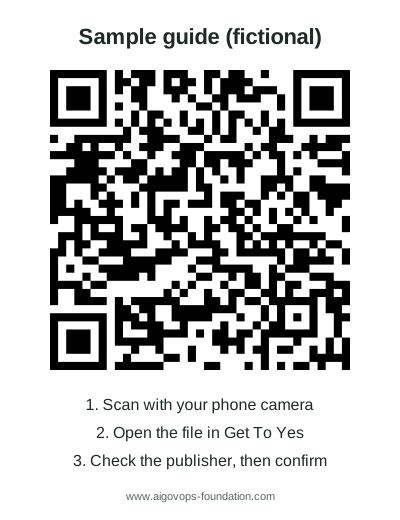
- Scan this code with your phone's camera. It opens a fictional sample guide, the Riverside Community Club.
- Choose to open the file in Get To Yes.
- The app shows who published the guide before you confirm it.
On the phone itself, you can open the sample guide file directly instead.
Widgets and accessibility (about 5 minutes)
- Add the Get To Yes widget to your Home Screen. On iPhone, also try the Lock Screen widget. Tapping it opens a new check.
- Turn on VoiceOver (iPhone) or TalkBack (Android). In the delete confirmation and the share preview, the reader stays inside the dialog.
- Try the largest text size and dark mode. Nothing is cut off or hard to read.
- Put the phone in airplane mode. The app still works.
4. Tell us what you found
Email Bob with your phone model, operating system version, build number and pass or fail for each section above. Screenshots or a short screen recording help with anything that failed. The app itself sends us nothing: your email is the only report we get.
How the app handles your data: Get To Yes privacy. Help: Get To Yes help.
Created using AI tools.